Your HDMI eARC port is a very important one, and I’d argue it’s your TV’s most important port. However, that doesn’t mean you should just be plugging anything into it, especially since you don’t have multiples of them as you do with regular HDMI ports. This means what you plug into the eARC has to be what belongs there.
If you’re anything like me, you have a lot of HDMI devices all fighting for space on your TV or receiver. If that’s you, then you should take note of everything on this list and make sure you avoid plugging them into your eARC port. Yes, your device will work regardless of the port, but you won’t get the most performance possible. That’s especially the case if you aren’t plugging your audio equipment into your TV’s eARC port. If you don’t know, that’s the very thing this port is designed for, so not doing that would be a waste of its power.
Don’t plug your video game consoles into your eARC port
They won’t get any benefits
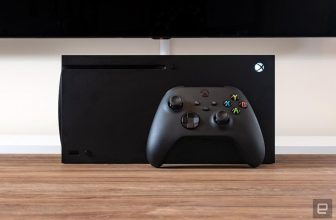
Your PS5 and Xbox Series X might feel like they can benefit from the best port your TV has to offer, but that’s not actually the case. Your video game console doesn’t get any benefits from being used in this port, since it’s something that affects audio instead of game performance. This means you should have your receiver or soundbar plugged in instead, so if you have it the other way around, you should fix that when you can.
What’s more important for your game console is an HDMI 2.1 port. Depending on the age of your TV, you might already be doing this since your ports should be the newest ones. However, if you’re still hanging on to some older HDMI 2.0 ports, get those switched out as soon as you can. You need HDMI 2.1 to utilize VRR and 120 FPS with your consoles.
Your streaming stick gets no bonus either
You should still buy one

Getting a Roku Streaming Stick, Apple TV 4K, or something similar is definitely something that can upgrade your home viewing experience, but that’s only if you have them plugged into the right port. In most scenarios, HDMI 2.1 is the right situation, unless you’re dealing with a 1080p stick like the regular Roku Streaming Stick. You can get away with any HDMI port in that case. Where you shouldn’t be plugging your device in is the eARC port.
1080p streamers don’t need HDMI 2.1 ports.
As mentioned, this is a port meant for audio equipment, so your streaming stick will just be hogging it when something far more useful could be there. A streaming stick is easy enough to switch to a different HDMI port, so don’t keep it there if you have it in the wrong port. The same thing applies if you have one plugged into an HDMI 2.0 when it should be in a 2.1 one.
Avoid your laptop or PC in this port
It’s not necessary

Plugging in a PC or laptop can help bring your TV to the next level, but if you do that, there’s no reason to use it in the eARC port. Like your streaming stick or console, there’s no benefit to this unless it’s the only HDMI 2.1 port your TV has. That’s probably not the case, and that means you shouldn’t be using this port for things like that.
I sound like a broken record at this point, but since this is a port that’s designed to give you the best audio, a PC or laptop wouldn’t get any perceivable benefit. Considering the fact that you likely don’t have a laptop plugged into your TV all the time, there’s a decent chance that you’re not using the wrong port here because you might already have your soundbar plugged into the eARC port.
What you should plug into your eARC port
Just sound equipment, mainly

Although I listed off a myriad of things you shouldn’t plug into this port, that doesn’t mean it’s useless. If you have an audio receiver or soundbar, you should absolutely be using your port for them. The eARC port will give you the best sound you can have, provided you have it paired with an HDMI 2.1 cable.
It’s an audio channel first and foremost, so while the rest of your devices will work in this port, you should avoid using them there if you can. If you have a receiver, plug it into this port, and then you can plug the rest of your devices into the receiver itself or your leftover TV ports. It’s a common and easy mistake to make, but it’s not something you’re stuck with once you recognize the error of your ways. I used to make the same mistakes, and it wasn’t until I started taking my audio more seriously that I realized I should be paying attention to the different HDMI ports my TV has to offer.
Trending Products

Zalman P10 Micro ATX Case, MATX PC Case with 120mm ARGB Fan Pre-Put in, Panoramic View Tempered Glass Entrance & Aspect Panel, USB Sort C and USB 3.0, White


Wireless Keyboard and Mouse, Ergonomic Keyboard Mouse – RGB Backlit, Rechargeable, Quiet, with Phone Holder, Wrist Rest, Lighted Mac Keyboard and Mouse Combo, for Mac, Windows, Laptop, PC

Nimo 15.6 FHD Pupil Laptop computer, 16GB RAM, 1TB SSD, Intel Pentium Quad-Core N100 (Beat to i3-1115G4, As much as 3.4GHz), Backlit Keyboard, Fingerprint, 2 Years Guarantee, 90 Days Return, WiFi 6, Win 11

Dell S2722DGM Curved Gaming Monitor – 27-inch QHD (2560 x 1440) 1500R Curved Display, 165Hz Refresh Rate (DisplayPort), HDMI/DisplayPort Connectivity, Height/Tilt Adjustability – Black

GIM Micro ATX PC Case with 2 Tempered Glass Panels Mini Tower Gaming PC Case Micro ATX Case with 2 Magnet Mud Filters, Gaming Pc Case with USB3.0 I/O Port, Black with out Followers